AI is no longer just a feature inside Canva
You can feel the shift the moment you open Canva now: AI isn’t tucked away as a single “generate an image” button. It’s starting to sit across the workflow—helping you turn a vague goal (“launch post for Friday”) into draft copy, suggested layouts, and a set of usable variations without leaving the editor. That changes what Canva is for. It’s less a place where you assemble pieces and more a place that proposes first passes you can react to.
The practical upside is speed, especially for small teams that don’t have a dedicated designer. When the tool is making choices about wording, hierarchy, and visuals, you’re trading some control for momentum—and you need a clearer standard for what “good enough” looks like before you hit publish.
What “more of the process” actually changes day to day
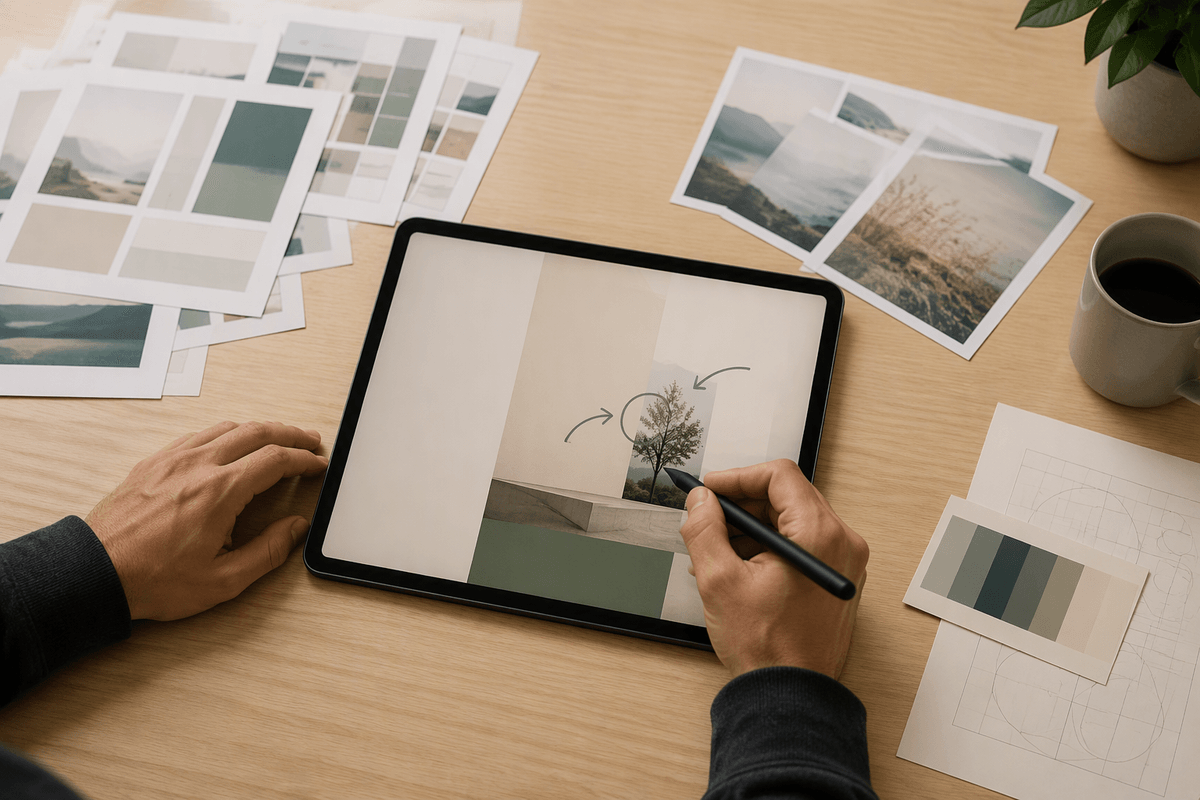
A familiar pattern in Canva is starting with a half-formed request, then spending most of your time searching: the right template, a headline that fits, an image that isn’t cheesy, a layout that doesn’t look cramped on mobile. “More of the process” changes that order. Instead of you hunting for building blocks, Canva proposes a first draft that includes copy, basic structure, and visual direction—giving you something concrete to edit within minutes.
Advertisement
Day to day, the work shifts from creating to judging. You’ll spend less time making a blank page look intentional and more time checking brand fit: does the tone match your audience, are claims accurate, do visuals imply something you didn’t mean, is the hierarchy clear? It’s faster, but it also adds a new step—review—because the default output can be off-brand or too generic if you accept it as-is.
From blank page to draft: where Canva AI fits best
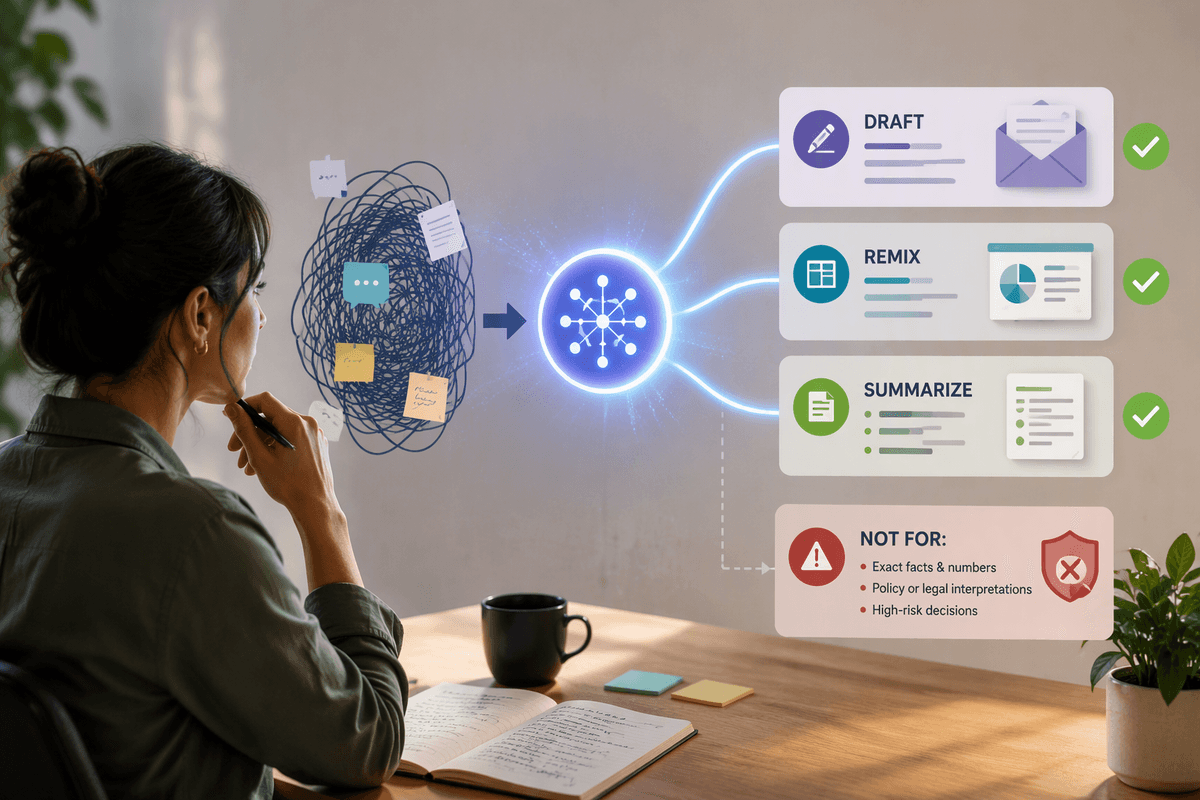
The moment Canva AI is most useful is when you don’t yet know what the design should be. You have a goal, a channel, and maybe a few details (date, offer, audience), but no clear headline, visual angle, or layout. That’s where AI can turn “we need a promo post” into a workable draft: a few copy options, a basic hierarchy (headline, subhead, CTA), and a layout that at least feels intentional. It’s a fast way to get out of the scrolling loop of “almost right” templates.
It’s less impressive when you already have a strong concept or tight creative direction. AI drafts tend to land in the middle—safe spacing, familiar compositions, and copy that sounds broadly competent but not distinctive. Treat it like a junior teammate: great at producing a first pass quickly, but it still needs you to set constraints and make the final calls before anything represents your brand.
Advertisement
Keeping brand consistency when AI generates design choices
You’ll notice brand drift fastest in small details Canva AI happily “fills in” for you: headline tone, color choices that are close-but-not-quite, and stock-style imagery that changes the mood. A draft can look polished while quietly breaking your rules—swapping a confident voice for a bubbly one, picking a slightly off palette, or treating your logo like decoration instead of an anchor.
The fix is to make the brand constraints explicit before you generate. Use a Brand Kit (logos, fonts, colors) and apply brand templates so the AI is working inside guardrails instead of inventing them. Then review with a short checklist: typography (only approved fonts and weights), color contrast (especially for mobile), photo style (lighting, subject matter, diversity), and CTA language. The first draft is faster, but consistency still costs a few minutes of deliberate checking per asset.
Templates, Magic tools, or custom design: picking the right lane
Advertisement
A common trap is treating every Canva project like it needs the same level of invention. Templates are the right lane when the structure is settled and you just need a clean, familiar format fast—weekly promos, event reminders, simple ads—where consistency matters more than novelty. They also make collaboration easier because reviewers recognize the pattern and focus on the message, not the layout.
Magic tools are most useful when the design is basically correct and you’re trying to remove friction: generate headline options, expand a background, resize for channels, or create a few variants for testing. Custom design makes sense when the layout itself is part of the strategy—new campaign concepts, unusual formats, or anything where brand differentiation is the point. AI can accelerate drafts, but it can’t tell you which trade-off is worth it for your audience.
Scaling variations without creating review and approval chaos

You’ll feel the tension as soon as you generate “just a few options” and suddenly have 18 versions of the same post: different headlines, colors, crops, and CTAs. Variety is useful for testing, but it also multiplies decision points. If your team doesn’t tighten the workflow, review turns into vague feedback (“make it pop”) across multiple files, and nothing ships on time.
Keep the variation stage narrow and structured. Generate widely, then quickly collapse to 2–3 finalists using simple rules: one message, one layout family, and only approved brand elements. Name versions by purpose (IG-Feed_A, Story_B, Ad_Test1) and route approval in one place, ideally with a single owner who accepts or rejects changes. Someone has to play editor; without that role, AI speed just creates more to argue about.
A practical way to start using Canva AI this week
Pick one repeatable asset you already make—an Instagram post, a newsletter header, a simple event flyer—and run a controlled test. Start by locking your Brand Kit and choosing one approved template family, then use AI only for the first pass: 3 headline options, 2 supporting lines, and 2 layout variations. Immediately collapse to one version, then do a five-minute review: facts (dates, prices, claims), brand voice, color/contrast on mobile, and image rights red flags (logos, faces, lookalikes). Track time saved and one quality issue you caught; that tells you where AI helps and where it adds risk.